
.rpt Inspector Enterprise Suite for BusinessObjects Enterprise, Crystal Enterprise, Crystal Reports
for BusinessObjects Enterprise, Crystal Enterprise :: Crystal Reports objects
Announcement: .rpt Inspector Professional Suite and .rpt Inspector Enterprise Suite are now in End Of Life (EOL) status.
.rpt Inspector Online, a new FREE cloud / SaaS product is now in public beta open to all available here: .rpt Inspector Online
.rpt Inspector Online runs in modern browsers (Mozilla Firefox and Google Chrome are supported, Internet Explorer support may be offered later) and supports Windows 7, Windows 8.1, and Windows 10 as well native support for Crystal Reports 2016 down to Crystal Reports 8.5 reports.
.rpt Inspector Online includes analysis, documentation tools, and now Change Data Source and Formula Editor features with additional in development. It is our intention to gradually add additional features, and have feature parity with the desktop tools (where possible) in later versions.Unlike Crystal Reports, Central Management Console (CMC), or BusinessObjects Enterprise InfoView / Crystal Enterprise ePortfolio -- with .rpt Inspector Enterprise Suite you can open one, two, a hundred, or several hundred Crystal Reports objects and/or Instances and/or Schedules -- all at the same time1!
Use the tools in .rpt Inspector Enterprise Suite to find and filter in common Crystal Reports design objects and properties (formulas, parameters, parameter default values, text, headers, footers, size, driver, database, printer, schedules, instances, database logons, formats, destinations, etc.) across the selected Crystal Reports and modify them all at the same time -- all with visual feedback.
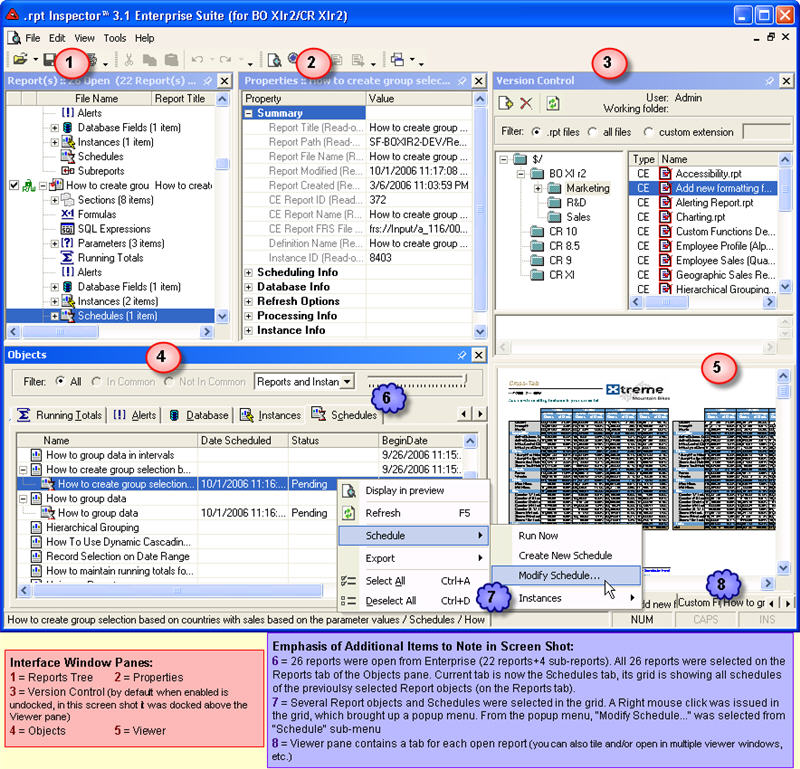
Unlike BusinessObjects Enterprise / Crystal Enterprise, with .rpt Inspector Enterprise Suite you can modify existing recurring schedules, reprocess a failed instance (fix the problem (i.e. missing parameters, database logon info, wrong e-mail destinations, etc.) without re-creating settings from scratch), reprocess a success instance (use the same settings but get latest data or modify a setting), and of course create new schedules and new instances, use version control and a lot more.
Read further for details and screen shots of each of the 19 tools which are integrated in to this powerful suite. Waiting for BusinessObjects Enterprise XI 3.x support? Click for details.
- Mass ... Change Data Source, Set Location, Convert Driver, Verify Database
- change your data source?
- move your Crystal Reports to a different database with the same tables & fields?
(i.e. from a development database -- to a staging / QA database -- to a production database) - migrate your Crystal Reports to a different database and/or different driver?
(i.e. from Oracle 9i to SQL Server 2000) - rename or remove fields and update the mappings in your Crystal Reports to reflect the
changes?
(i.e. changed field Employee_Number to EmployeeNo)
You can literally make changes to hundreds of Crystal Report's data sources and/or databases, update field mappings, and more in minutes.
| Database Connection Method | Supported Databases | |||||||
|
Access |
Excel |
DB2 |
Informix | Oracle |
SQL |
Sybase | Other | |
| ODBC | Yes - However Not Tested In Our Labs | |||||||
| New as of 3.12 - DAO | ||||||||
| OLE DB | Yes - However Not Tested In Our Labs | |||||||
| Native Driver | ||||||||
| Note that there is currently limited support for stored procedures (currently only stored procedures without parameters are supported as we do not prompt for those parameters -- this is expected in a future version). | ||||||||
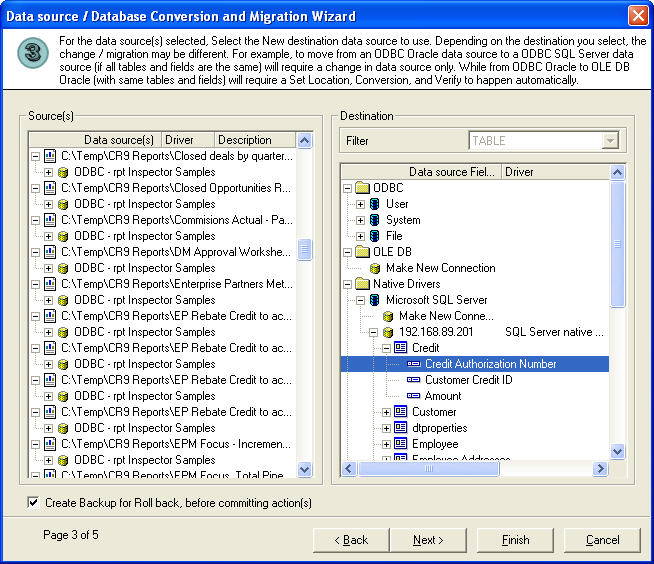
- Crystal Reports to work with
- source(s) (each Crystal Report's table / view / stored procedure -- is a source)
- destination database
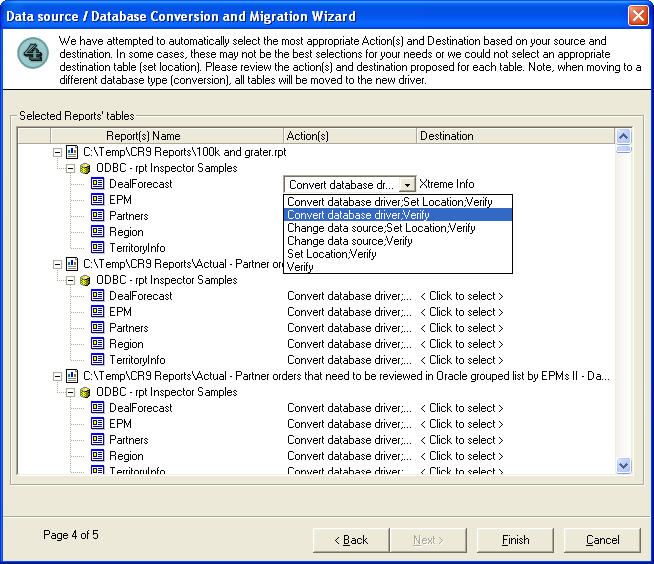
- action(s) to perform for each of the selected source(s) or use the wizard's
suggestions
(for each source in the report, you can specify a different action -- Change Data Source, Set Location, Convert Driver, Verify Database)
- destination table / view / stored procedure (the wizard will make a suggestion if it can)
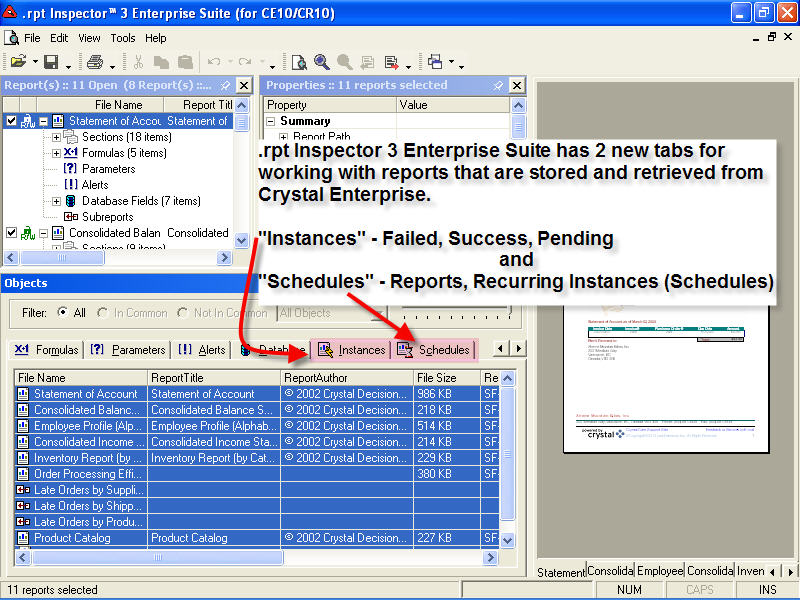
- Find, Analyze, Group By Instance status (Failed, Success, Pending, Paused), Folders, Errors, Run By, and more ...
- find failed / success / pending / paused instances?
- analyze why an instance failed, when it was run, who it was run by or any number of instance properties?
- group instances by one or multiple properties to find and analyze information
(i.e. group by "status + error + run by")
- Find, Analyze, Group By Instance status (Failed, Success, Pending, Paused), Folders, Errors, Run By, and more ...
- Modify Existing Schedules (Recurring Instances) - Schedules, Destinations, Databases, Formats, Processing, Parameters
- Create New Instances (Scheduled, Recurring, or On Demand)
- Reprocess Existing Instances (Create a new Instance based on existing settings or modify settings of Failed or Success instances)
- Pause / Resume / Delete Instances and Schedules
Fact: If a scheduled instance fails in Business Objects Enterprise or Crystal Enterprise, you can not reprocess (create new instance based on failed instance properties) it and modify its properties (i.e. database info, destination, format, parameters, etc.) to fix the problem. Instead you must create a new schedule and re-enter all the information.
Fact: Once an instance has been processed and has a status of success, you can not reprocess it (i.e. run it again with same properties but get latest data, or maybe even modify some of the properties and get latest data) in Business Objects or Crystal Enterprise.
Fact: You can not create a new instance or create a recurring schedule on behalf of a user in Business Objects Enterprise or Crystal Enterprise. Instead, the user you are logged in as will be used.
Fact: You can do all of the above and more with .rpt Inspector Enterprise Suite!
Our Instance Manager tool makes it quick and easy.
When you open Crystal Reports object(s) directly from BusinessObjects Enterprise or Crystal Enterprise (as opposed to opening a Crystal Report on the file system), .rpt Inspector Enterprise Suite automatically retrieves their Enterprise specific properties (i.e. Report ID, FRS Path, Instance Info, Schedule Info, etc.).
Examples of use and screen shots:
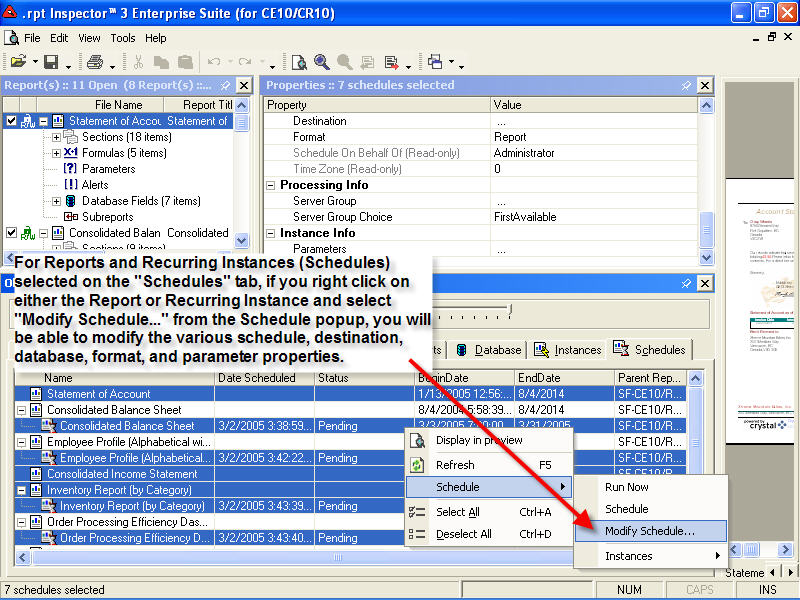
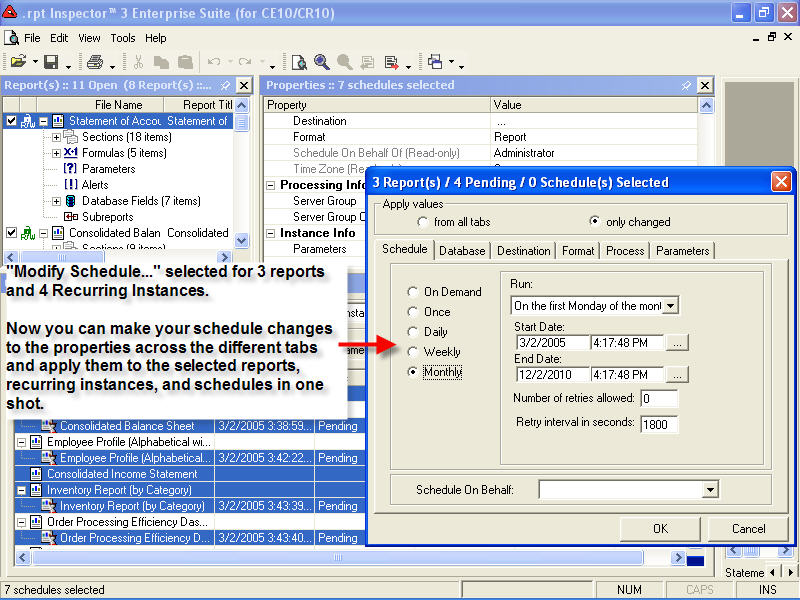
Recurring Schedules ...
Now instead of having to recreate your recurring from scratch, anytime you'd like to modify a setting (i.e. Schedule,

Failed / Success Instances ...
Fix the reason your schedule / instance failed (missing or wrong Database Logon Info, missing or wrong Parameter values, etc.) or get the latest data from a success instance.
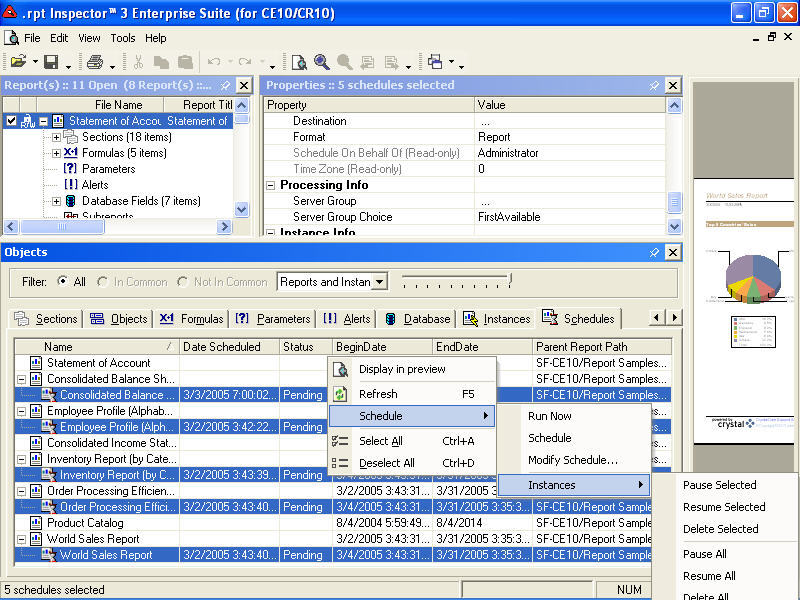
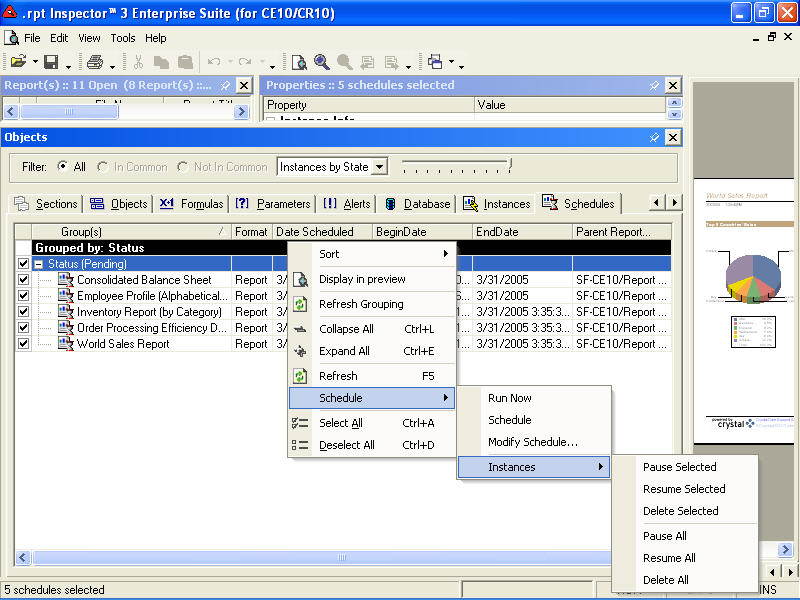
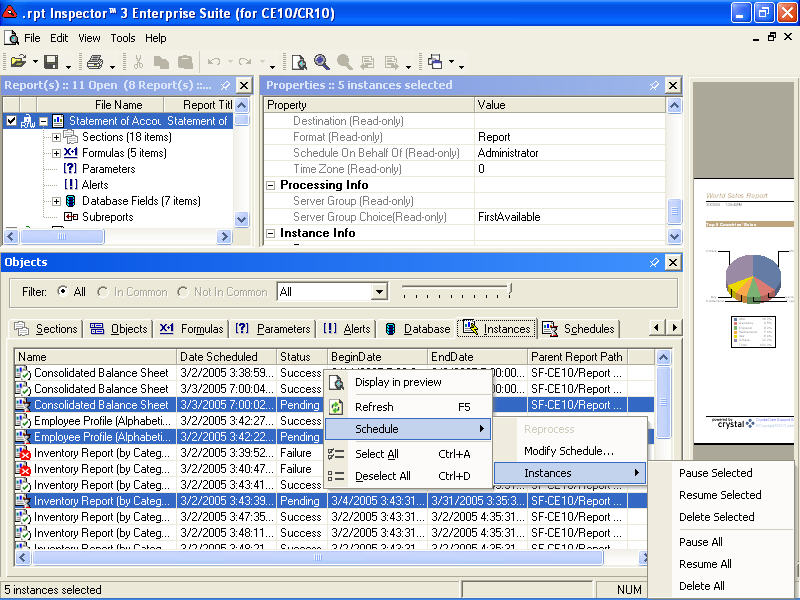
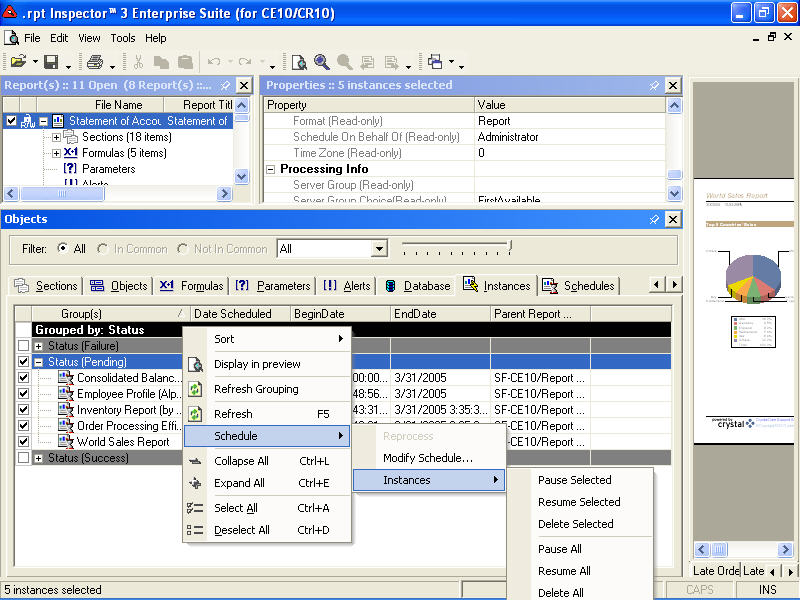
In seconds you can easily find and select your instances by status (or other property) and take appropriate action (reprocess, delete, pause, resume, document, etc.).
Schedules / Instances typically fail because of missing database logon information or missing parameter information.

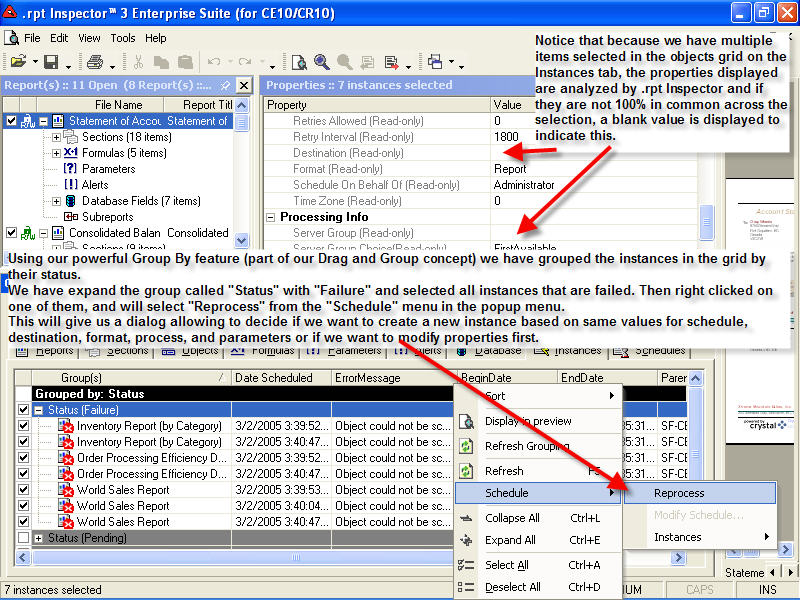

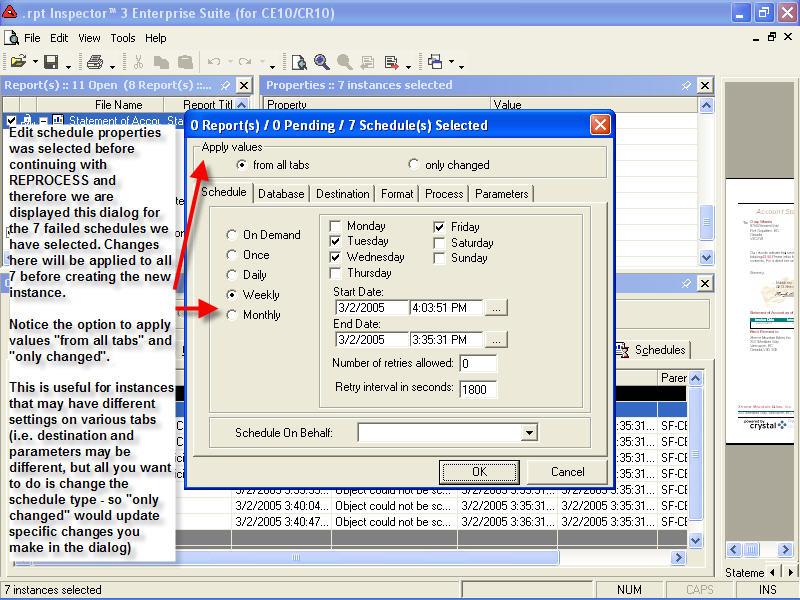
Now instead of having to create a new schedule / instance from scratch, you can select existing failed or success instance(s) and reprocess (create a new instance) based on existing information in the instance (i.e. Database, Destination, Format, Parameters, etc.) or modify some or all of that information before creating a new instance.
Pause / Resume / Delete Instances & Schedules ...
You you can Delete / Pause / Resume instances across one or many Crystal Reports and folders at the same time.
- Integrated with Microsoft SourceSafe1
- Seamless Synchronization with reports stored in BusinessObjects Enterprise / Crystal Enterprise and/or File System
- Check In, Check Out, View History, and more ...
- Drag and Drop ease to Add new Crystal Report(s) to Version Control or Check Out and Open Crystal Report(s) in Version Control in one step
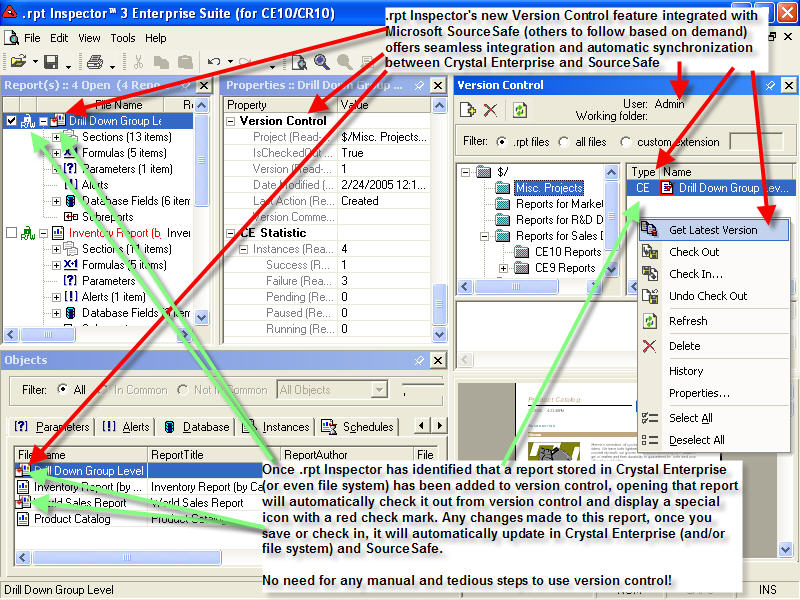
Ever wish you could know if someone else is working on (modifying) the same report you'd like to change?
Now you can. Our native and seamless integration with Microsoft SourceSafe1 gives you the power, flexibility, and most of all -- ease of use with our automated Business Objects Enterprise / Crystal Enterprise and Crystal Reports file system version control tool.
Once a report has been added to version control via .rpt Inspector Enterprise Suite, we make the process of working with this Crystal Report easy. Whether you open the Crystal Report directly from Business Objects Enterprise / Crystal Enterprise or the file system.
| Working with version control ... | |
|
without .rpt
Inspector |
with .rpt
Inspector |
To add to version
control:
When you add a report to version control, it's file name is used for reference. Since the Business Objects Enterprise / Crystal Enterprise file names are cryptic, they will be cryptic in your version control repository. To work with report(s) added to version control:
|
To add to version control:
Reports added to version control via .rpt Inspector Enterprise Suite use the report's title and all references to them are always in a friendly format. To work with report(s) added to version control:
|
|
How would you rather work? |
|
We've made working with version control a breeze.
1 Microsoft Visual SourceSafe does not come with .rpt Inspector Enterprise Suite. It is a seperate product from Microsoft. If you use another version control repository -- let us know you'd like to see support added for it.
- Find, Analyze, and Group By Data Source / Database, Drivers, Connect Strings, Tables, Fields (including quickly those in use and not in use), and more ...
|
Such as ... |
|
|
|
- which fields are in use or not in use?
- what field types (string, numeric, etc.) are used for your fields?
- what database, driver, etc. is used in your Crystal Reports to do an impact analysis?
To further ease your efforts, you can group by any of these properties to quickly and easily get to the information your looking for.
- Search and Replace Text in all Objects
- Supports Pattern Matching (Regular Expressions) in Search and/or Replace*
- Saves matches on Finds and/or Replaces in History (exportable to Clipboard, CSV, or XML)*
- which report has a formula definition that contains "*.20"
- which text objects contain "Acme Corp."
 it resides (text objects, parameter objects, formula objects, etc.). It's easier than ever to find what
you're looking for and/or replace it with something else. You can even fine tune your search by specifying
which specific types of objects to search.
it resides (text objects, parameter objects, formula objects, etc.). It's easier than ever to find what
you're looking for and/or replace it with something else. You can even fine tune your search by specifying
which specific types of objects to search.And if you want to get even fancier, you can take advantage of our pattern matching search and/or replace* which uses regular expressions.
* Denotes a new feature
- Text
- Font properties (Font / Font Size / Font Style)
- Color properties (Text Color, Back Color, Border Color)
- Line properties
- Paragraph properties
- Size properties
- Position properties
- and more ...
- Fonts
- Colors
- Lines
- Paragraphs
- Sizes
- Positions
- and more ...
- Find, Analyze, Group By, and Modify Definition Text (with Crystal and VB Syntax highlighter and Validation)
- Standardize Formulas (edit, copy, paste definition text across multiple formulas across multiple Crystal Reports)
- variations on previous formulas
- almost the same and you want to standardize them
- in need of updates or changes
All in a powerful easy to use Formula Editor that supports formula validation checking and keyword syntax highlighting in your choice of Crystal or VB formula syntax. And it's integrated with our Spell Checker tool.
- Find, Analyze, Group By, and Modify Prompt, Default Values, and more ...
- Standardize Parameters (edit, copy from source and paste to multiple destinations across multiple reports, add new values, change order, etc.)
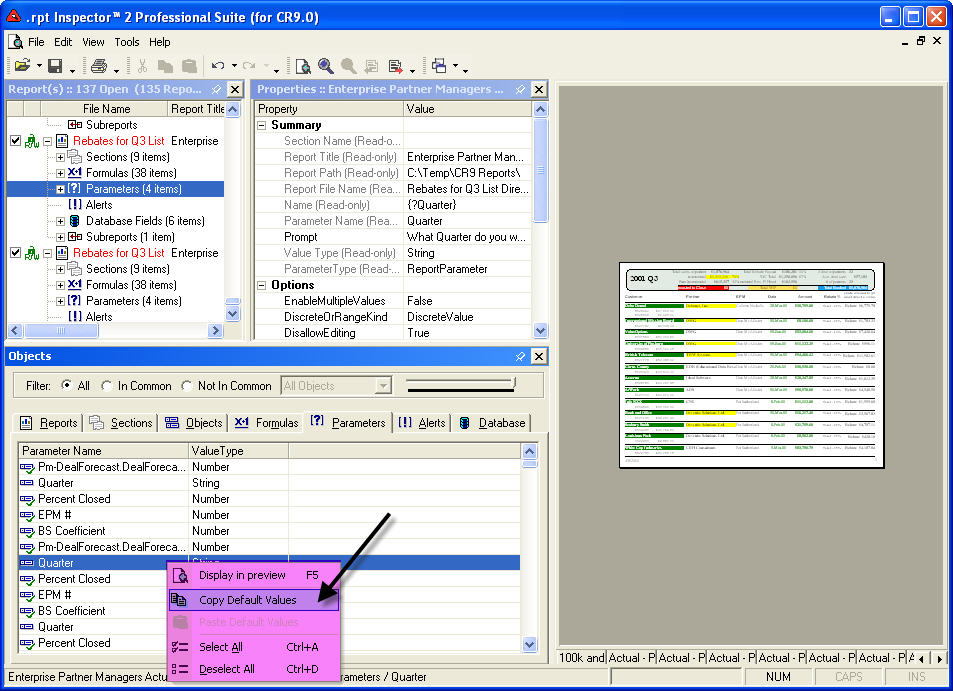
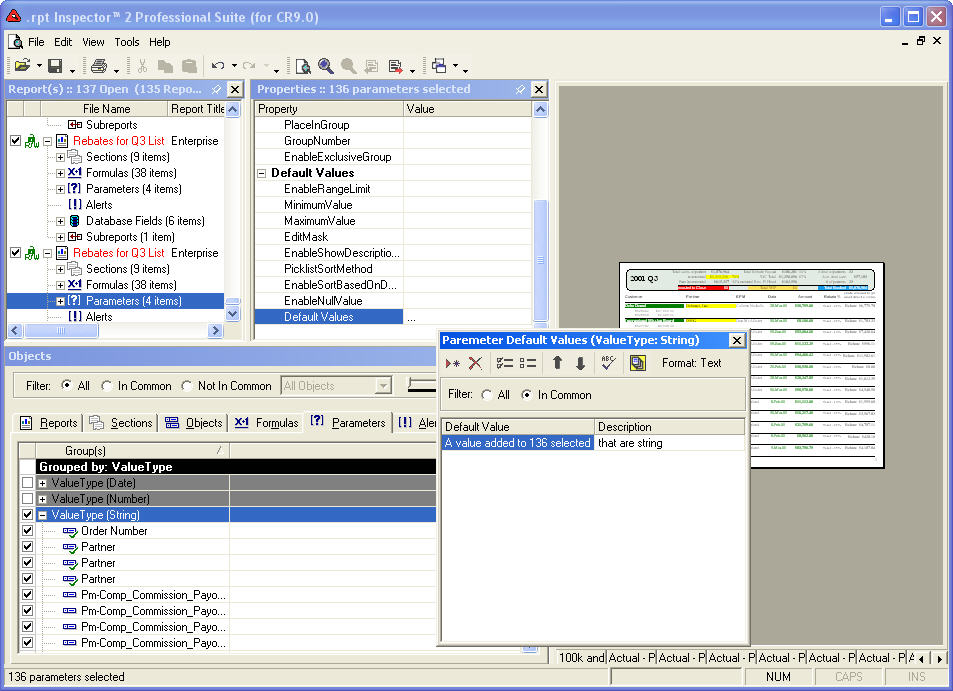 With our Parameter Editor (default values editor) you can select multiple parameters across one or
many reports and you can append or overwrite default values with ease.
With our Parameter Editor (default values editor) you can select multiple parameters across one or
many reports and you can append or overwrite default values with ease.Another way to work with parameter default values is our one-to-many copy relationship. This allows you to select your source, copy its values, and paste them to as many destinations as necessary.
And it's integrated with our Spell Checker tool.
- Find, Analyze, Group By, and Modify
- Name
- Formula Name
- Value Type
- Definition Text
- NumberOfBytes
The DefinitionText property is powered by the same powerful Formula Editor that supports formula validation checking and keyword syntax highlighting in your choice of Crystal or VB formula syntax. And it's integrated with our Spell Checker tool.
- Blob Field
- Box
- CrossTab
- Database Field
- Formula Field
- Graph
- Group Name
- Line
- Map
- Olap Grid
- Ole
- Parameter Fields
- Running Total
- SQL Expression
- Summary
- Special
- Text
- and more ...
- Borders
- Colors
- Currency Formatting
- Date Formatting
- Fonts
- Lines
- Number Formatting
- Paragraph Formatting
- Positions
- Sizes
- Conditional Formulas
- and more ...
When you design a report, in addition to the database fields you can put on the design, can also create various objects (Box, Text, Formula, Parameter, SQL Expression, etc.) and put some or all of them on the design of the Crystal Report.
The Objects Editor is designed to work with only those objects that appear on the design (the objects that are in use) of the report. Those objects that do not appear on the design (those that were created but are not being used) can still be accessed and worked with their respective editors (Formula, SQL Expression, Parameter, Running Total, Alert, etc.) on the respective Tab of the Objects Grid.
Now you can see and modify the various properties of your objects with ease.
All conditional formulas are powered by the same powerful Formula Editor that supports formula validation checking and keyword syntax highlighting in your choice of Crystal or VB formula syntax. And it's integrated with our Spell Checker tool.
- Find, Analyze, Group By, and Modify
- Name
- RunningTotalFieldName
- Value Type
- HierarchicalSummaryType
- NumberOfBytes
- Find, Analyze, Group By, and Modify Sections
- Name
- AreaName
- Number
- Number Of Objects
- Color and Size (Back Color, Conditional Formula, Width, Height, MinimumHeight)
- CssClass
- HideForDrillDown
- Suppress (and Conditional Formula)
- SuppressIfBlank (and Conditional Formula)
- PrintAtBottomOfPage (and Conditional Formula)
- NewPageAfter (and Conditional Formula)
- NewPageBefore (and Conditional Formula)
- ResetPageNumberAfter (and Conditional Formula)
- KeepTogether (and Conditional Formula)
- UnderlaySection
- and more ...
- Change the default printer on your Crystal Reports
Use our Printer Change Wizard to quickly and easily change the default printer and its properties across multiple Crystal Reports at the same time.
- Find, Analyze, Group By, and Modify SQL Expressions
- Definition Name
- ConditionFormula
- DefaultMessage
- MessageFormula
The formula modifications are powered by the same powerful Formula Editor that supports formula validation checking and keyword syntax highlighting in your choice of Crystal or VB formula syntax. And it's integrated with our Spell Checker tool.

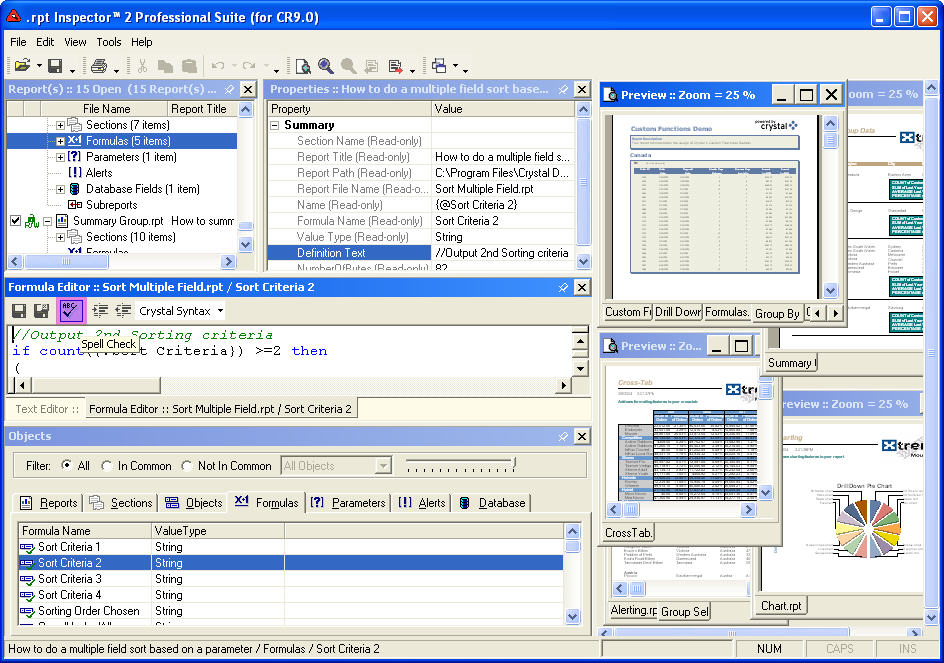
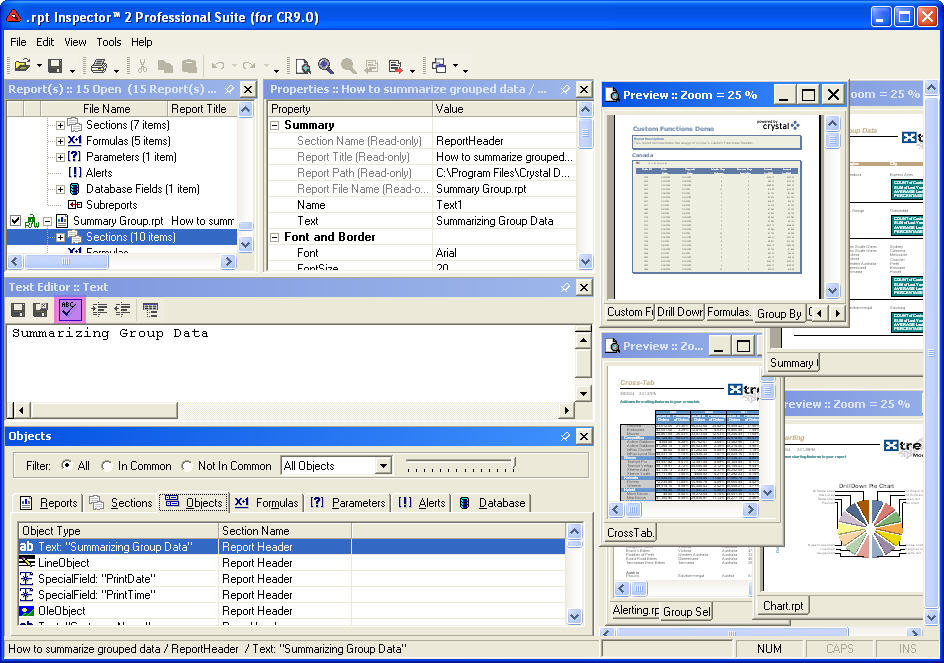 Now you can spell check
your text and even add custom words to the dictionary. No more embarrassing typos.
Now you can spell check
your text and even add custom words to the dictionary. No more embarrassing typos.The spell checker is available in our Text, Formula, and Parameter editors.
- Similar in concept to MP3 Playlists
- Create a virtually unlimited number of Report Lists
- Each report list can have a virtually unlimited number of Crystal Reports (sorted in your preferred order) from various directories on the file system and/or folders in APS/CMS
- Opening a Report List automatically opens all associated Crystal Reports
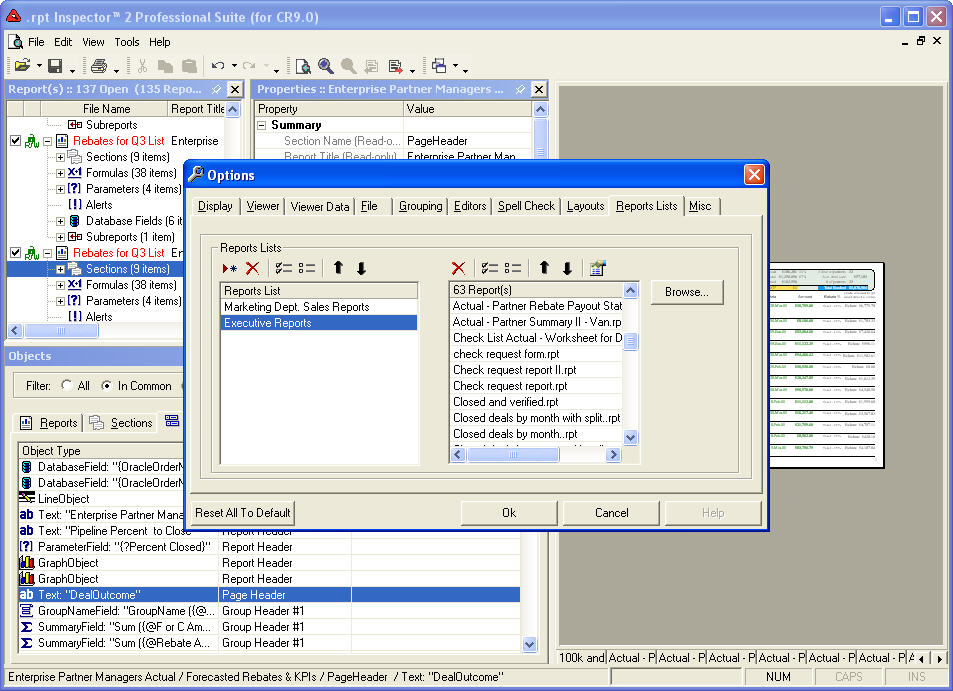
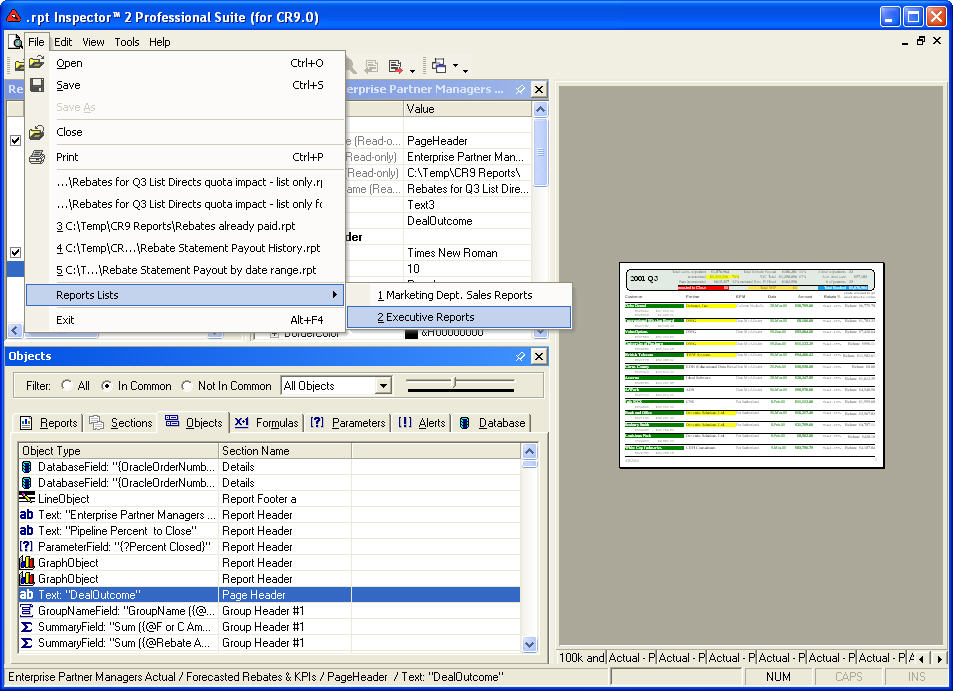 Do you work with the same
sets of Crystal Reports? You no longer need to open them one at a time (even if you select multiple Crystal
Reports in the open dialog you'll love this feature).
Do you work with the same
sets of Crystal Reports? You no longer need to open them one at a time (even if you select multiple Crystal
Reports in the open dialog you'll love this feature).Just like an MP3 playlist, you can create a virtually unlimited number of Report Lists. Add to each report list any number of Crystal Reports you'd like, from any directory on your system or mapped drive.
Then click on a report list and it will automatically open all Crystal Reports in the list.
- See multiple Crystal Reports in their own preview window
- Visually compare Crystal Reports
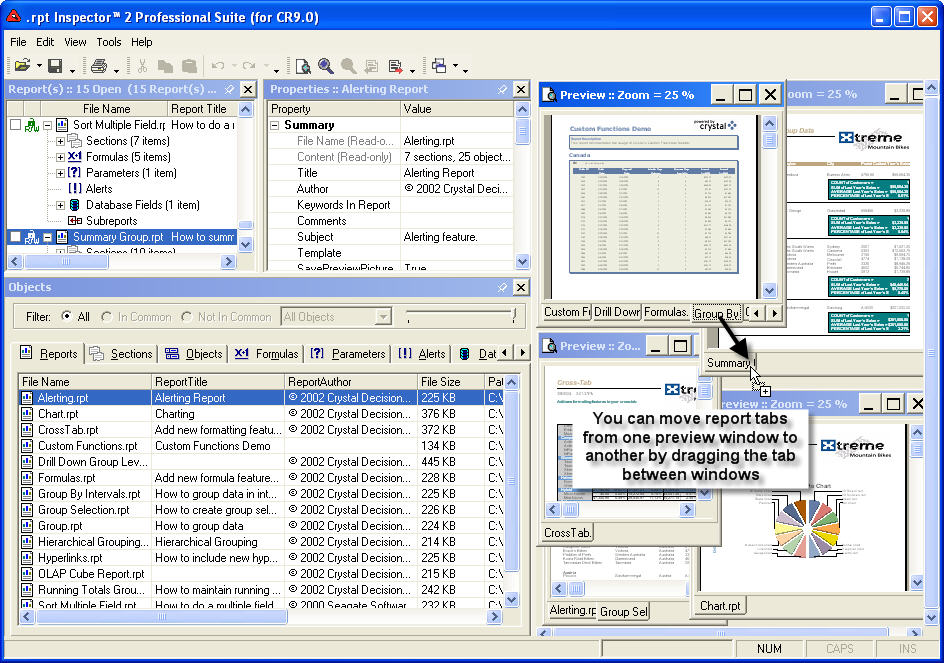
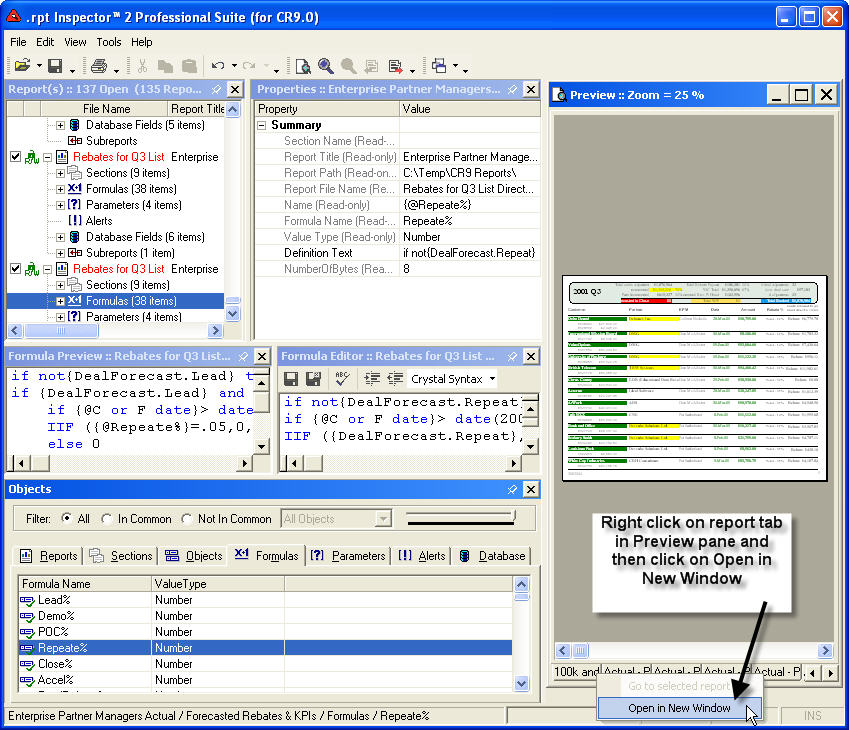 In addition to showing you
open sub-reports as a separate tab (configurable in TOOLS | OPTIONS), we have now given you the ability to
open a virtually unlimited amount of preview windows. Simply right click on one of the report tabs in the
preview viewer pane and select Open In A New Window open.
In addition to showing you
open sub-reports as a separate tab (configurable in TOOLS | OPTIONS), we have now given you the ability to
open a virtually unlimited amount of preview windows. Simply right click on one of the report tabs in the
preview viewer pane and select Open In A New Window open.But we didn't stop there. You can drag and drop the report tabs between all open preview windows. And if you want your sub-reports to automatically follow, turn it on in TOOLS | OPTIONS.
This powerful feature allows you to quickly and easily see your changes come to live to multiple previews at the same time.
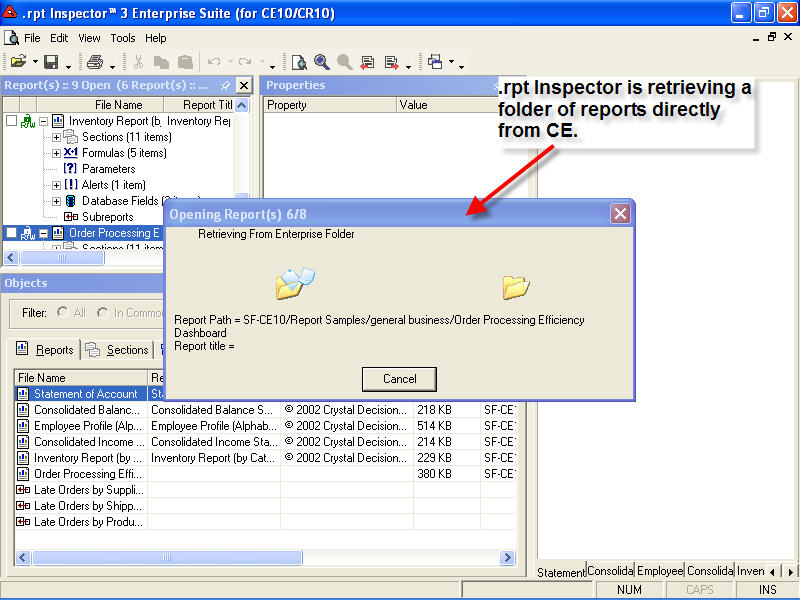
.rpt Inspector 3.1 Enterprise Suite allows you to logon to your APS/CMS and browse a list of virtual folders to select your Crystal Reports objects. Now you can open multiple Crystal Reports objects at the same time directly from BusinessObjects Enterprise (BO) / Crystal Enterprise (CE) and .rpt Inspector Enterprise Suite will also automatically retrieve their meta-data. No longer do you need to map drives to your CE server and deal with cryptic folder and files names.
.rpt Inspector 3.1 Enterprise Suite is available in 4 editions. Each is feature for feature identical:
(see Specifications page for requirements and supported file format(s) for each edition)
- .rpt Inspector 3.1 Enterprise Suite (for CE 9/CR 9)
connects to Crystal Enterprise 9 and reads Crystal Reports 5.x - Crystal Reports 9 & writes in Crystal Reports 9 file format. - .rpt Inspector 3.1 Enterprise Suite (for CE 10/CR 10)
connects to Crystal Enterprise 10 and reads Crystal Reports 5.x - Crystal Reports 10 & writes in Crystal Reports 10 file format. - .rpt Inspector 3.1 Enterprise Suite (for BO XI/CR XI)
connects to BusinessObjects Enterprise XI and reads Crystal Reports 5.x - Crystal Reports XI & writes in Crystal Reports XI file format. - .rpt Inspector 3.1 Enterprise Suite (for BO XIr2/CR XIr2)
connects to BusinessObjects Enterprise XI Release 2 and reads Crystal Reports 5.x - Crystal Reports XI Release 2 & writes in Crystal Reports XI Release 2 file format.
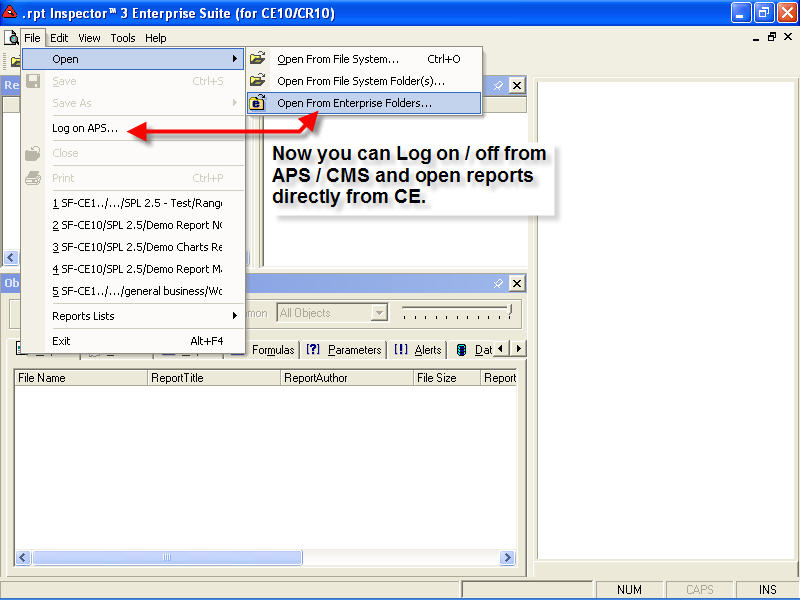

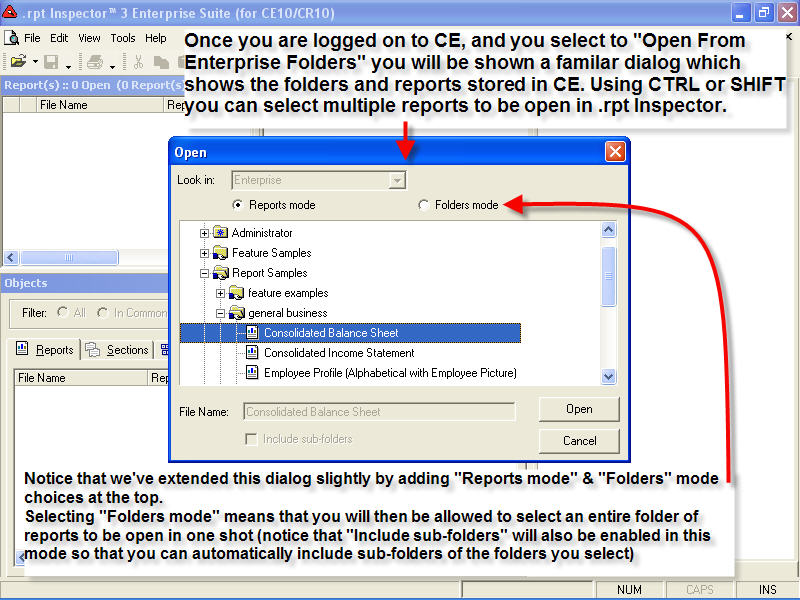 Just like you can open a single Crystal Report at a time directly from "Enterprise Folders" using Crystal
Reports -- with .rpt Inspector 3.1 Enterprise Suite you can open One, Two, Three, or several Hundred
Crystal Reports objects at the same time directly from "Enterprise Folders".
Just like you can open a single Crystal Report at a time directly from "Enterprise Folders" using Crystal
Reports -- with .rpt Inspector 3.1 Enterprise Suite you can open One, Two, Three, or several Hundred
Crystal Reports objects at the same time directly from "Enterprise Folders".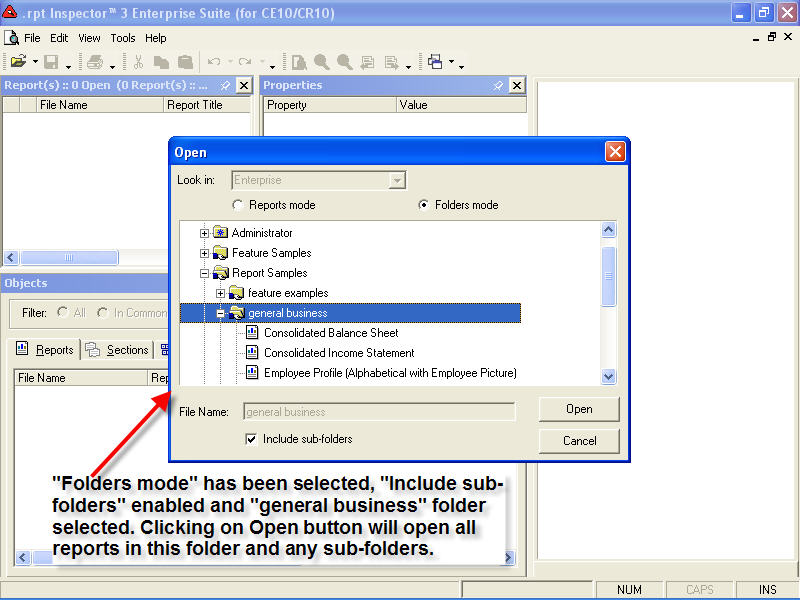 We've
extended the familiar "Enterprise Folders" dialog to support selection using CTRL + CLICK as well as SHIFT + CLICK, and even a mode that allows you to
select an ENTIRE folder -- with even its
sub-folders.
We've
extended the familiar "Enterprise Folders" dialog to support selection using CTRL + CLICK as well as SHIFT + CLICK, and even a mode that allows you to
select an ENTIRE folder -- with even its
sub-folders.For Crystal Reports that you open from Business Objects Enterprise / Crystal Enterprise "Enterprise Folders", .rpt Inspector 3.1 Enterprise Suite automatically retrieves their numerous BusinessObjects Enterprise
 / Crystal Enterprise specific Properties for you to Analyze and/or Modify (i.e. Report ID, Instance ID, FRS
path, # of total instances, # of failed instances, # of successful instances, failure reason, schedule info,
schedule type, destinations, database logon, formats, parameters, and many more -- see additional screen
shots in other sections below).
/ Crystal Enterprise specific Properties for you to Analyze and/or Modify (i.e. Report ID, Instance ID, FRS
path, # of total instances, # of failed instances, # of successful instances, failure reason, schedule info,
schedule type, destinations, database logon, formats, parameters, and many more -- see additional screen
shots in other sections below).
In version 1 we supported ODBC for the preview viewer and the datasource wizard.
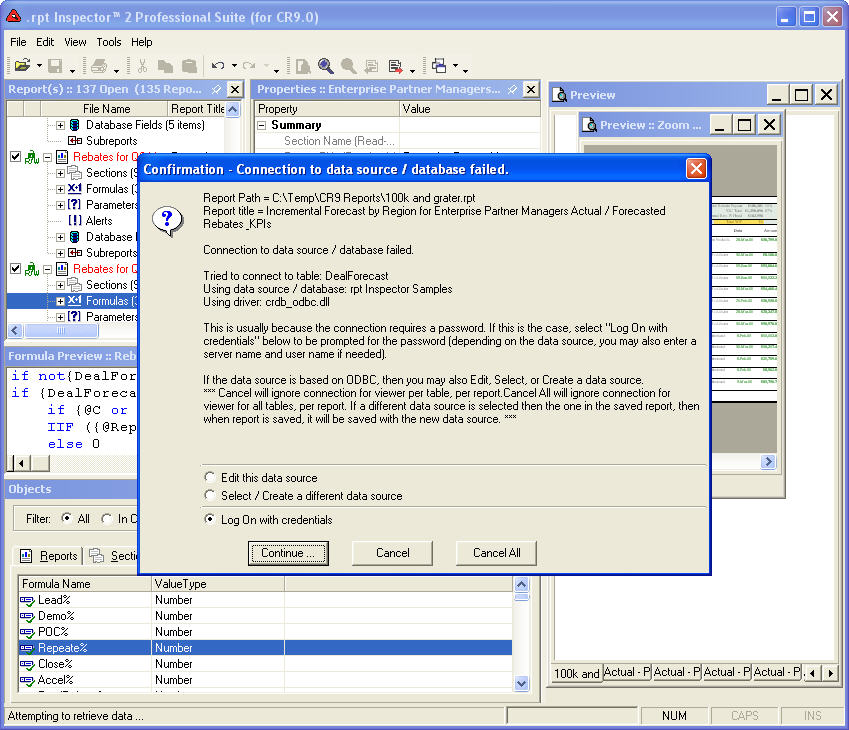 As of
version 2, we've greatly expanded our connectivity support.
As of
version 2, we've greatly expanded our connectivity support.Now updated with native support for Crystal Reports stored in Business Objects Enterprise / Crystal Enterprise.
Now when enabling the preview viewer and making a connection to a database, you'll be prompted to enter a user id and password if necessary on all supported connectivity methods. For connectivity methods that require specifying more information then just a user id and password (OLE DB and Native drivers) we completely support this too.
Originally introduced in version 1, our patent pending technology allows you to quickly and easily analyze properties across objects and reports.
Drag and Group is the concept of selecting item(s) in the Objects pane, and dragging one or more properties from the Property pane down to the Objects pane (to any grid on any tab) to create a new column.
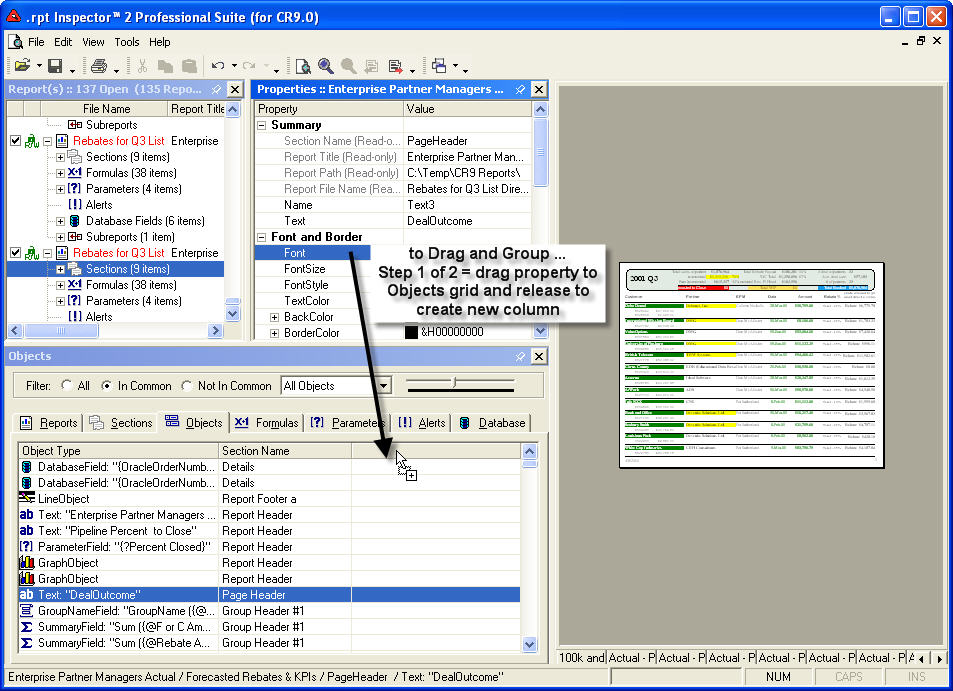
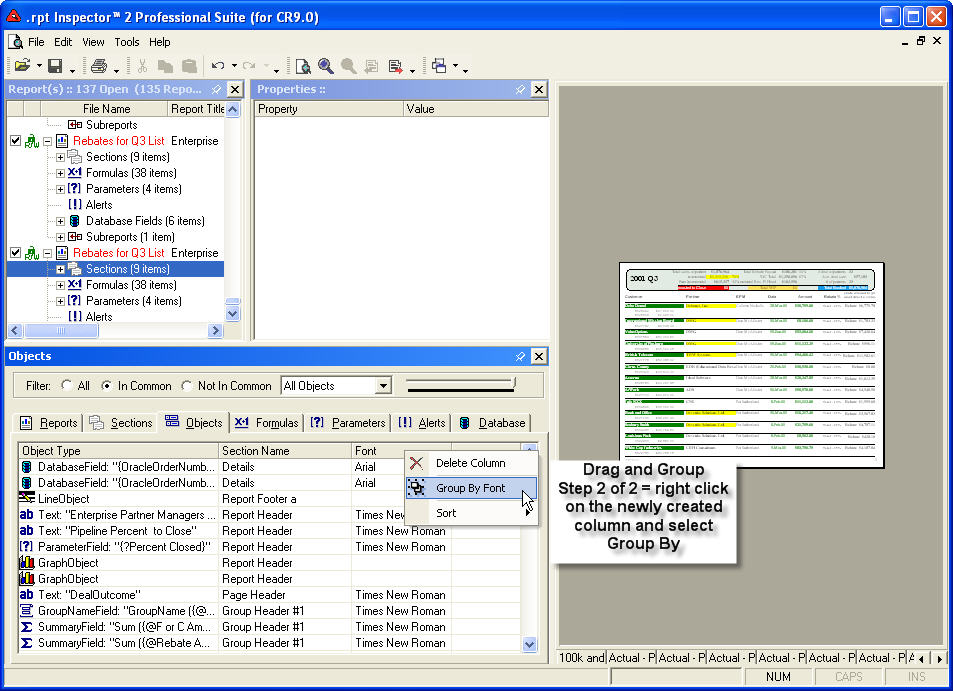
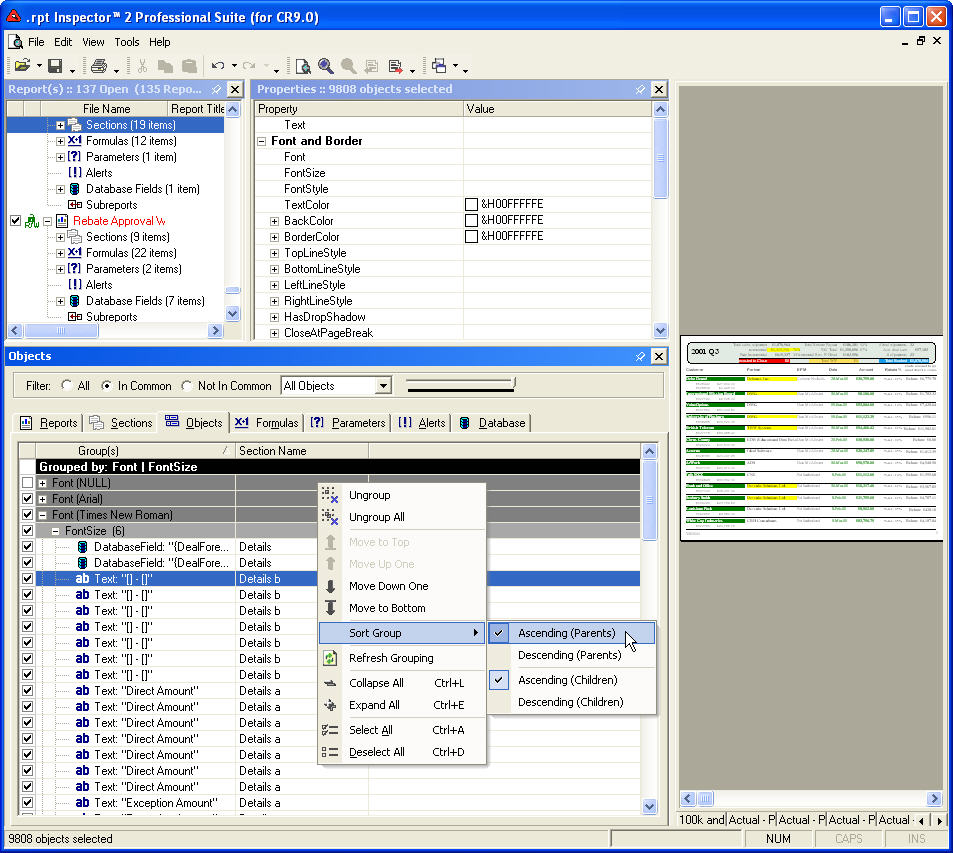 Then right
clicking on the column header and selecting group by object name (where the object name is the name of the
column; i.e. font; font color, formula, etc.). The result is a pivot view.
Then right
clicking on the column header and selecting group by object name (where the object name is the name of the
column; i.e. font; font color, formula, etc.). The result is a pivot view.And now as of version 2, we've further optimized performance on grouping and moving items within the groupings (top / bottom / up one / down one). Plus we've exposed the grouping level color configuration and added support for auto-refresh of groupings.
All window
 panes
and menus dockable and floatable. This gives you ultimate control of the user interface to customize as you
see fit.
panes
and menus dockable and floatable. This gives you ultimate control of the user interface to customize as you
see fit.Many editors (text, formulas, parameters, etc.) have also support docking.
With our dockable and floatable window panes and menus, you'll want to customize the layout that suits you
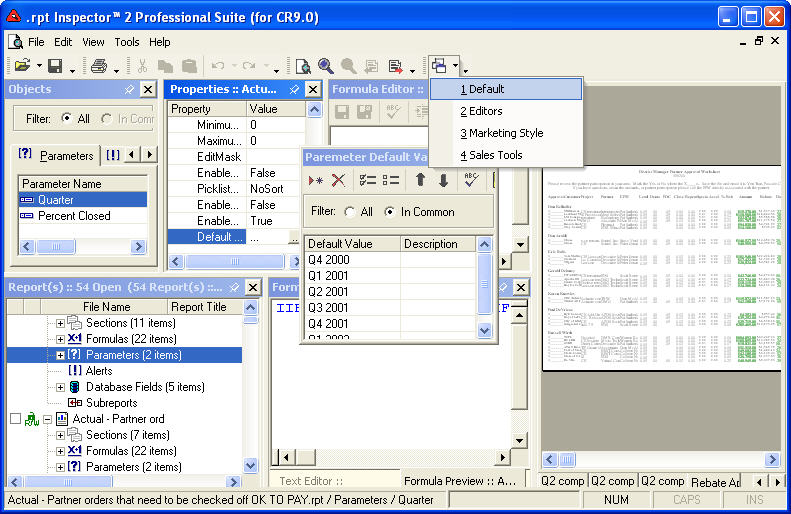
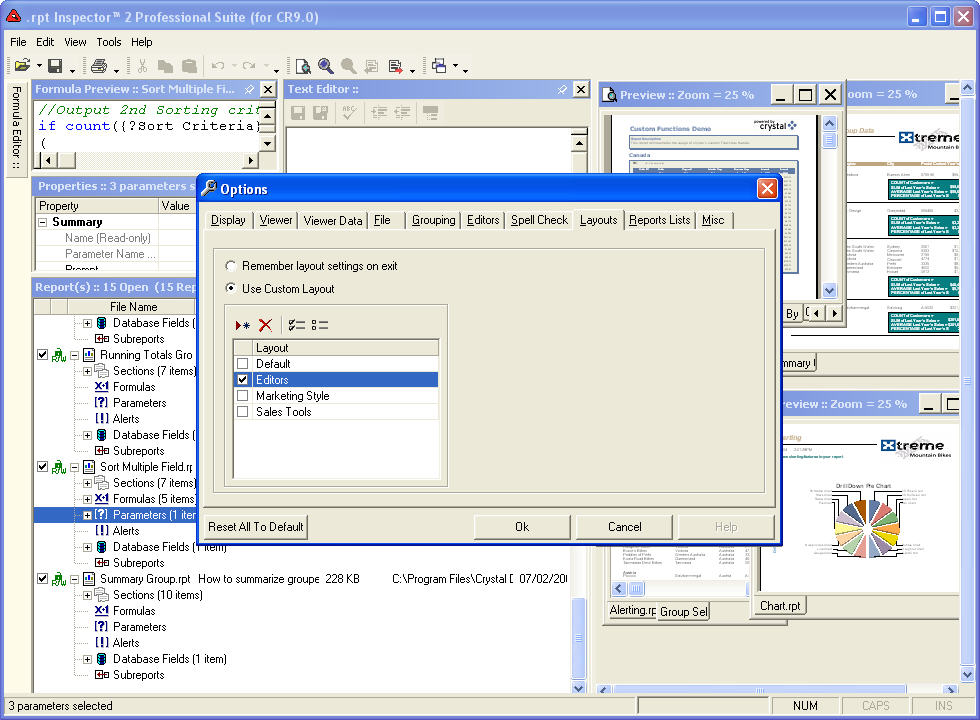
 best. So we've given you the ability to save a virtually unlimited number of customizable layouts that you
can quickly and easily switch to on the fly.
best. So we've given you the ability to save a virtually unlimited number of customizable layouts that you
can quickly and easily switch to on the fly.But don't worry. It's easy to return back to the default layout at anytime.